


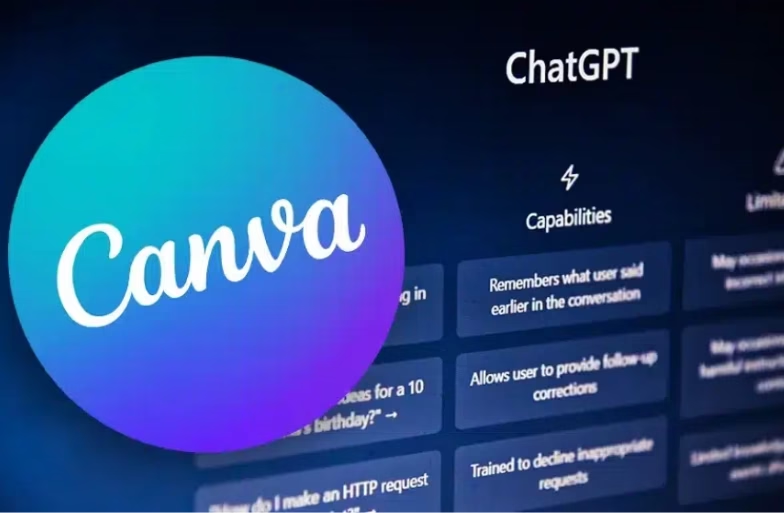
Tired of switching between ChatGPT and Canva to bring your ideas to life? With Canva now integrated into ChatGPT, you can generate, edit, and publish beautiful graphics directly within your conversations. You can describe what you want, say, a poster, presentation, or social media post and Canva will instantly create it without switching tabs. In this guide, we will walk you through the simple steps to connect Canva with ChatGPT and start designing right from your chat window.
Steps to Connect Canva with ChatGPT
Integrating Canva with ChatGPT is straightforward. Here is how you can do it:
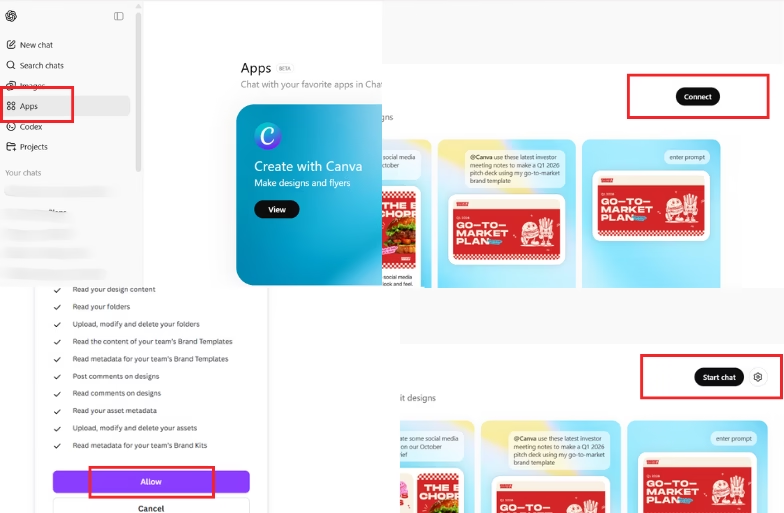
1. Click on the “Apps” option from the left sidebar. This is where you will find all the available integrations you can use inside ChatGPT.
2. In the Apps section, scroll until you find “Canva.” Click on it to open its dedicated integration page and click the “Connect” button.
3. A new window will appear asking you to allow ChatGPT to access your Canva account. You’ll need to log in (if not already) and review the permissions list. Click “Allow” to grant access.
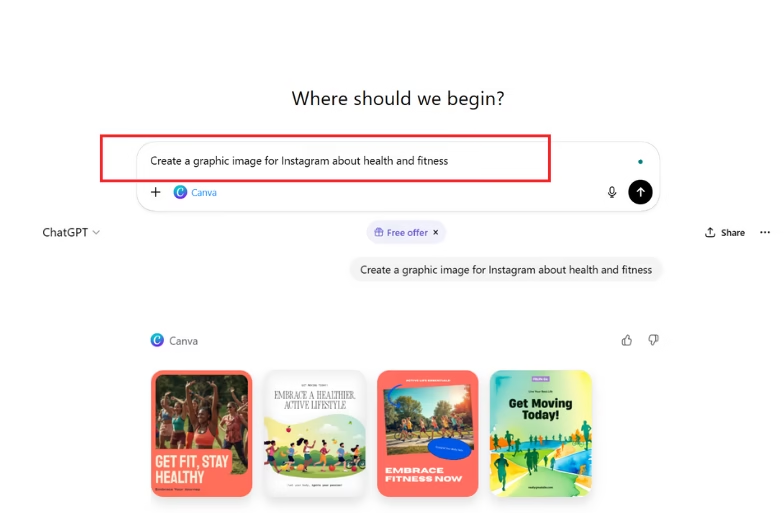
4. Once the connection is successful, Canva will appear as a linked app inside ChatGPT. You can now type prompts and customize instantly.
And that is it. Your Canva account is now integrated with ChatGPT. This would allow you to design visually appealing content effortlessly.

Why Connect Canva with ChatGPT?
The Canva integration is not just convenient. It is a productivity booster for creators, marketers and professionals. Here are a few reasons why it’s worth setting up:
- Speed and simplicity: No need to switch tabs or juggle multiple tools.
- AI-powered creativity: Combine ChatGPT’s creative suggestions with Canva’s design capabilities.
- Consistency: Use your brand templates and design assets directly within conversations.
- Collaboration: Quickly generate ideas, get instant visuals, and refine them in Canva.
Tips to Get the Most Out of Canva in ChatGPT
The following tips can help you get polished results faster and keep your visuals consistent with your content:
- Be specific with your prompts and avoid confusing ChatGPT
- If you have a Canva Pro account, you can save your brand’s colors, fonts, and logos in a Brand Kit. This ensures that every design you create through ChatGPT follows the same look and feel. This keeps your visuals consistent and professional.
- Experiment with styles. You can request different vibes like “modern,” “vintage,” or “professional” to get varied results.
So if you’re someone who designs regularly, whether for social media, business, or personal projects, connecting Canva to ChatGPT is definitely worth it.
FAQs
1. Is the Canva integration free to use?
Yes, the integration itself is free. Canva features like premium templates may require a Canva Pro account.
2. Can I edit my designs later?
Absolutely. After generating designs in ChatGPT, click to open them in Canva where you can make any edits before downloading or publishing.
3. Is my Canva data safe?
Yes. When you connect to Canva, you are authorizing secure access through your Canva account. ChatGPT can’t view or store your designs outside your Canva workspace.
4. Can I disconnect Canva anytime?
Yes, go to ChatGPT → Settings → Connected Apps to do the same.