




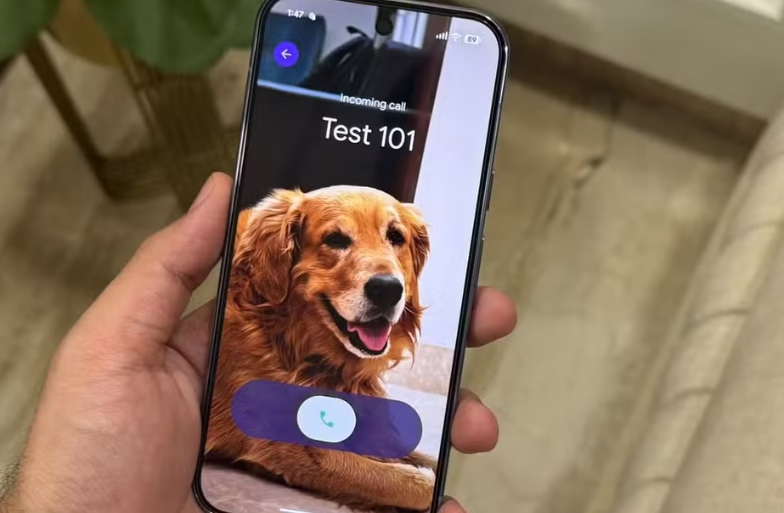
Google is gradually rolling out a new update for Android users that brings a more personalized calling experience. It is Google Calling Cards. The feature lets you customize how contacts appear on your call screens, including full‑screen photos, stylized text and more when you receive or make calls. Not every user will see it immediately as it is appearing in phases.
According to Google, the feature is rolling out in version 188 or newer of the Google Phone app and works alongside the Contacts app. Once available, it lets you transform how your calls look and feel.
Prerequisites for Trying Out the Latest Calling Card Update
Before you begin, you must have the following prerequisites with you:
- Android device with the latest Google Phone app installed (v188 or later). Update via Play Store.
- You may need to wait for the feature to appear. It is rolling out in phases.
- If you don’t see it yet, joining the Google Phone beta often reveals the option sooner.
Step-by-Step Guide to Set Up a Calling Card
Follow the steps below to enable a calling card on your Android device:
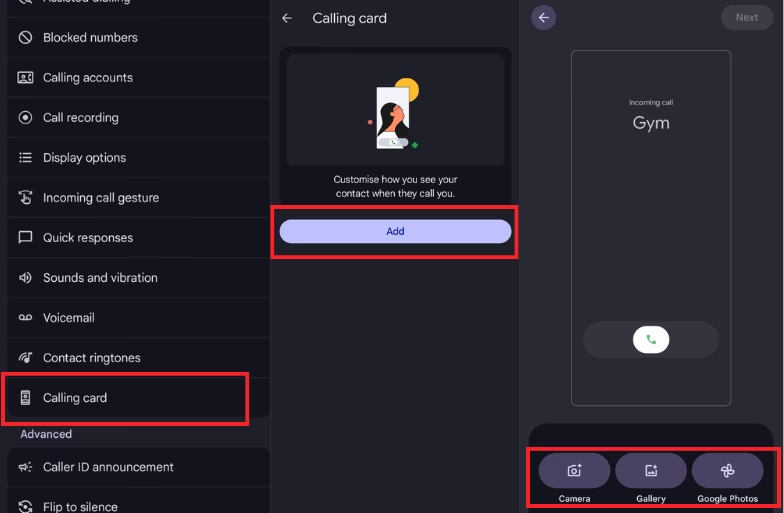
- Open the Google Phone app.
- If you see the “Introducing calling card” banner at the top, tap Get started.
If not, open a contact or go to Menu (shown by 3 dots > Settings > Calling card. - Next, tap on the “Add” option for whoever you want to add to the list.
- Choose a picture among these options: Google Photos, Camera, Gallery and adjust the photo (crop/position).
- Lastly, pick a font style and text color for the name and click on Done.

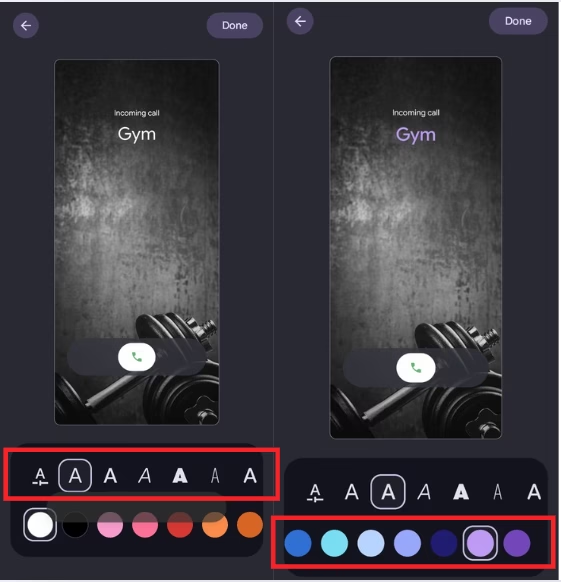

Once saved, this Calling Card would appear on the screen during incoming calls and outgoing calls for that contact.
FAQs
-
Will others see my Calling Card when I call them?
– Standard Calling Cards only change how contacts appear on your device. They don’t change how your calling card looks on someone else’s phone unless “My Calling Card” becomes fully available and both devices support it.
-
Where else can I edit Calling Cards?
– You can also create or edit cards via the Google Contacts app. You have to choose a contact and tap on the calling card option.
-
I don’t see the banner in the phone app. What should I do?
– Update the Phone & Contacts apps to the latest versions. If still missing, join the Phone beta via the Play Store to get the feature early.
-
Can I sync these cards to all my devices?
– Yes. Since cards save to your Google account, they appear across devices where the same account and app versions are signed in.