


Fed up with unwanted emails that are taking up a lot of space and making your Gmail storage full? If yes, then this article is for you. Most users prefer not to spend extra on Google’s paid storage plans and instead want to use the free 15GB wisely. If that sounds like you, there’s a smart way to deal with promotional newsletters, marketing emails, and transaction receipts — all of which can be deleted in one go.
Here’s how to delete emails in bulk in Gmail
Deleting unnecessary emails manually can take hours or even an entire day. To make things easier, we’ve listed some simple tricks below that allow you to delete emails in bulk. These steps not only save time but also help keep your Gmail inbox clean, ensuring your 15GB storage is reserved for important emails, photos, and other essential files.
Delete promotional emails using ‘Unsubscribe.’
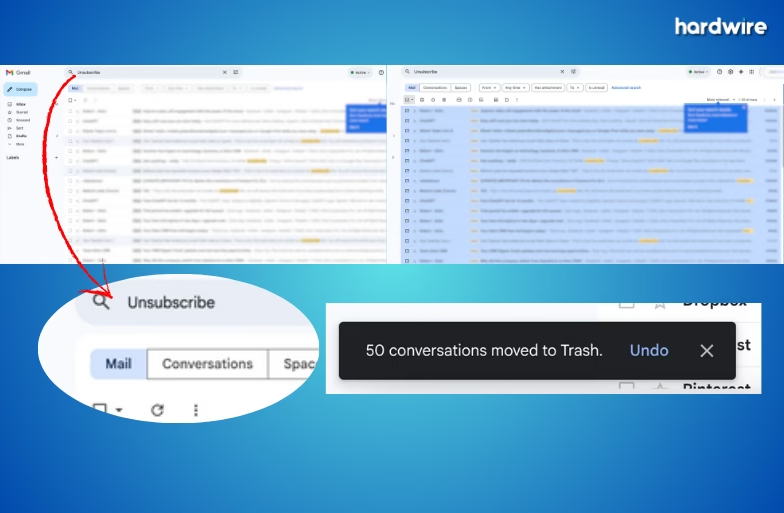
If you have ever received promotional emails or newsletters, you may have noticed that most of them include the word ‘Unsubscribe’. This makes it easier to target such emails and remove them in bulk. Follow these steps:
- Type ‘Unsubscribe’ in the search bar and press Enter
- Click the checkbox at the top-left above the email list to select all emails on the page
- Click the option that appears saying ‘Select all conversations that match this search.’
- Tap the trash can icon to delete them all at once
- You can repeat the same process in other tabs, such as Promotions or Social, for a deeper cleanup
Want to clear emails from a specific time period? Gmail’s search filters make this easy:
- Type a date filter, such as before:2023/01/01 or older_than:1y, in the Gmail search box
- Once the results appear, select all emails using the top checkbox
- Click the trash icon, and the emails will be deleted within seconds
Here’s a bonus tip. Once emails are deleted, they move to the Trash folder and remain there for 30 days, continuing to occupy storage space. To free up space immediately, open the Trash folder from the left sidebar and select all emails, and hit the ‘delete forever’ icon to remove them permanently
